Competitor Cross-Reference and Equivalent Product Finder for Odoo
This module keeps a catalogue of those part numbers, links each of them to your equivalent products, and lets a salesperson find your product by the code the customer used, right in the quotation. It is made for distributors and resellers of bearings, filters, spare parts, electrical and hydraulic components, fasteners, consumables and other catalogue products.
Key Features:
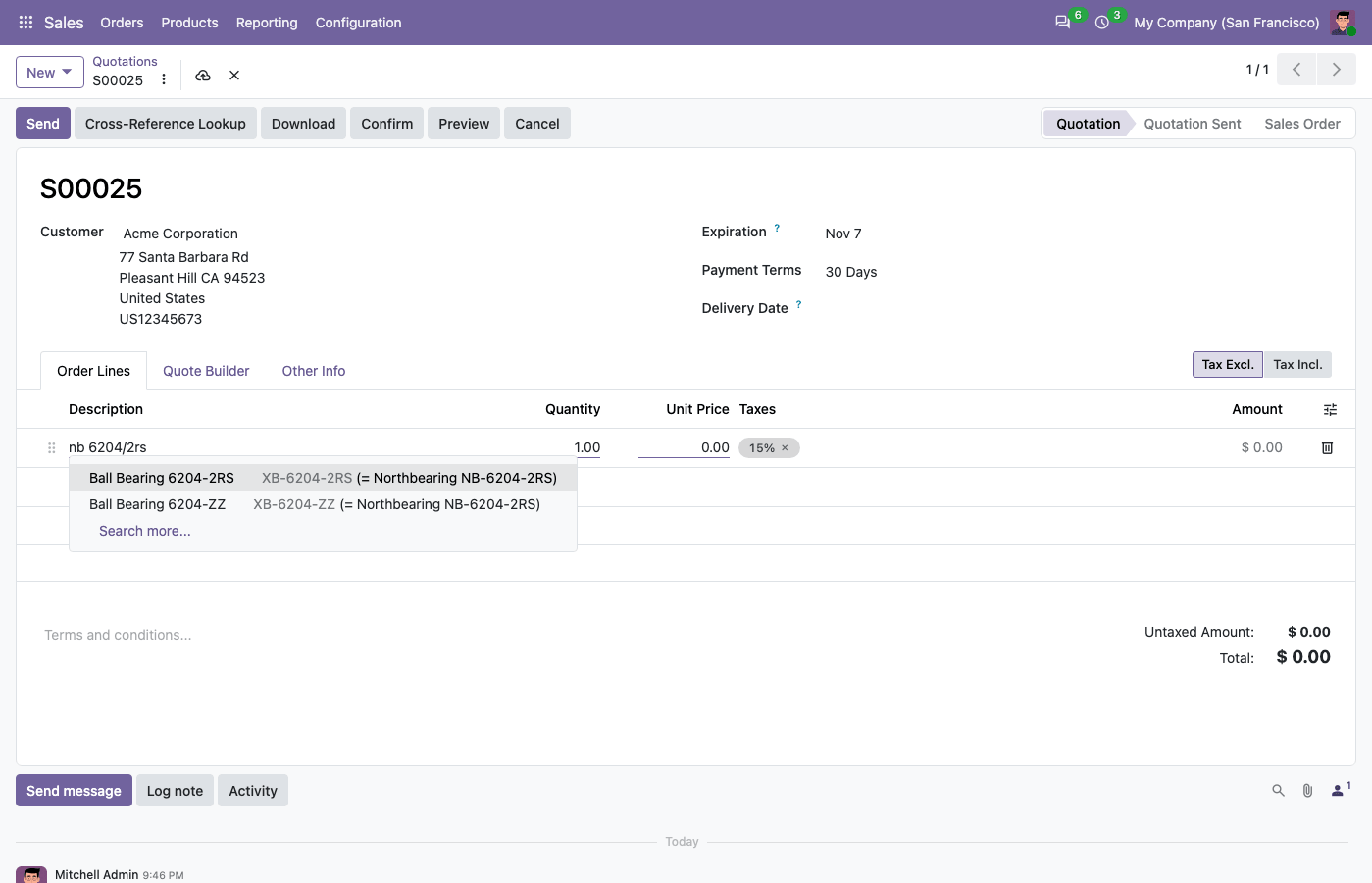
- Type a competitor code in the product field of a quotation line and get your equivalents, labelled with the part number they replace
- Cross-Reference Lookup: paste a list of codes and quantities from an e-mail or a spreadsheet and add your equivalents to the quotation in one click
- Several equivalents per part number, each with a priority, a match type (Direct Replacement, Similar, Functional Alternative) and the differences
- Codes are compared without case, spaces, dashes and look-alike Cyrillic or Greek letters: "NB-6204/2RS", "nb 6204 2rs" and "NB62042RS" are the same code
- Comparison of specifications and prices with your equivalents, and search of your products by specifications
- Unmatched Codes: the codes customers asked for and the catalogue does not know yet, with how often they were requested
- Import from Excel or CSV with a template, a check before import and updates of existing records
- Every salesperson uses the catalogue; only Cross-Reference Editors and sales managers change it
- Multi-company: a cross-reference belongs to a company or is shared. Works in Odoo Community and Enterprise, no extra apps required
Why use it:
- Faster quotations. A request for quotation with dozens of competitor codes becomes a quotation in seconds, instead of looking each code up in spreadsheets and catalogues
- Fewer wrong products. Only exact matches are added automatically. Every equivalent says whether it is a direct replacement or what differs, so the salesperson knows what to tell the customer
- Knowledge stays in the company. The cross-reference tables that lived in spreadsheets and in the heads of experienced salespeople are shared by the whole team
- Lost demand becomes visible. Unmatched Codes shows which competitor products customers ask for most and you cannot offer yet
- Safe for the customer's documents. Price, taxes and description of a line are computed as for a product added by hand
Find Your Product by a Competitor Code
Type the code the customer used in the product field of a quotation line. Your equivalents come first, in the order of their priority, and show which part number they replace. Your own internal references and barcodes still work as usual and always come first.
Turn a Request for Quotation into a Quotation
Click Cross-Reference Lookup on a quotation, or open it from Sales → Orders for a new one. Paste the codes from the customer's e-mail or spreadsheet, with quantities after a Tab or a semicolon, and click Find. Every line shows its status:
- Found: one cross-reference matches, its first equivalent is proposed
- Our Product: the code is your own internal reference or barcode
- Choose: several brands use this code, pick the right product
- Not Found: the code is recorded in Unmatched Codes
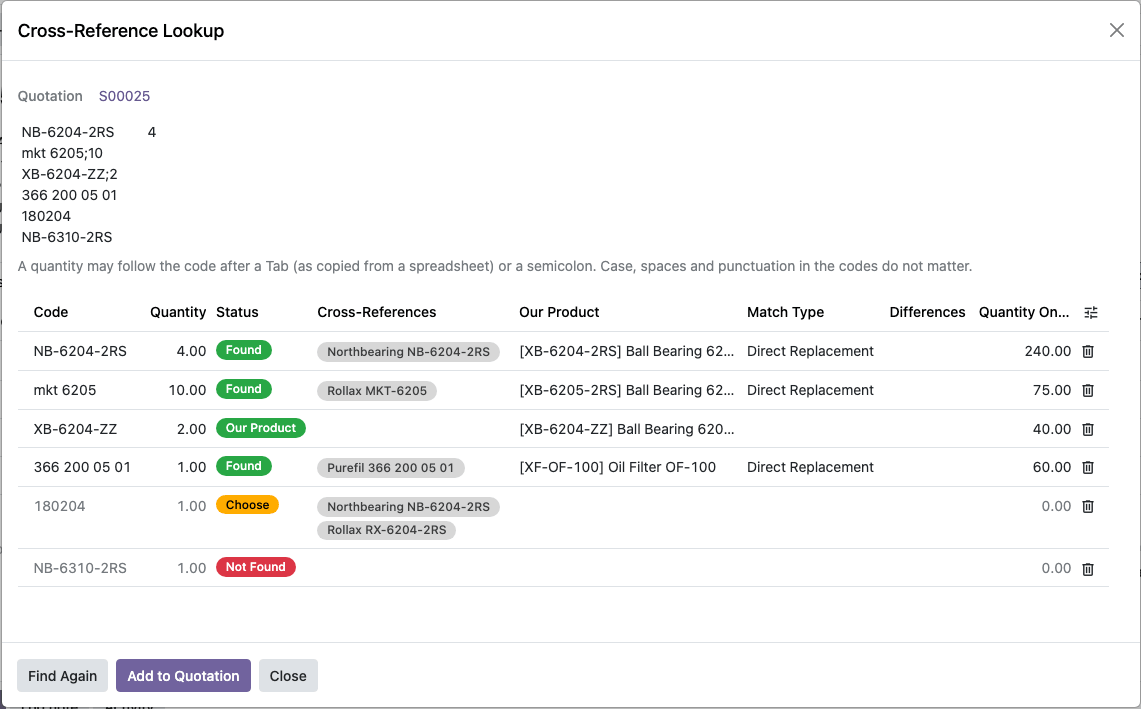
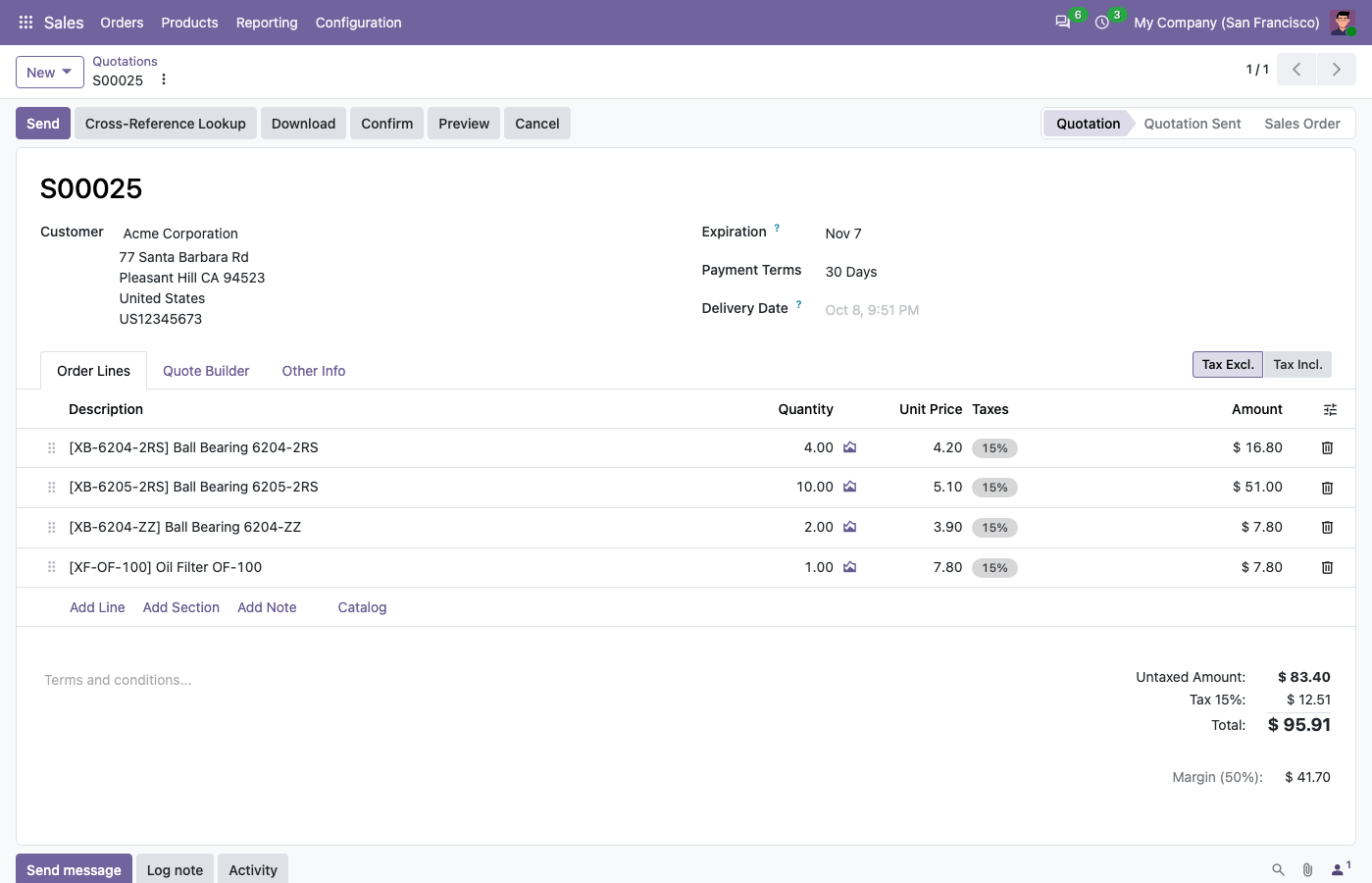
Add to Quotation adds the lines in the order of the request. The quotation shows only your products:
Cross-Reference Catalogue
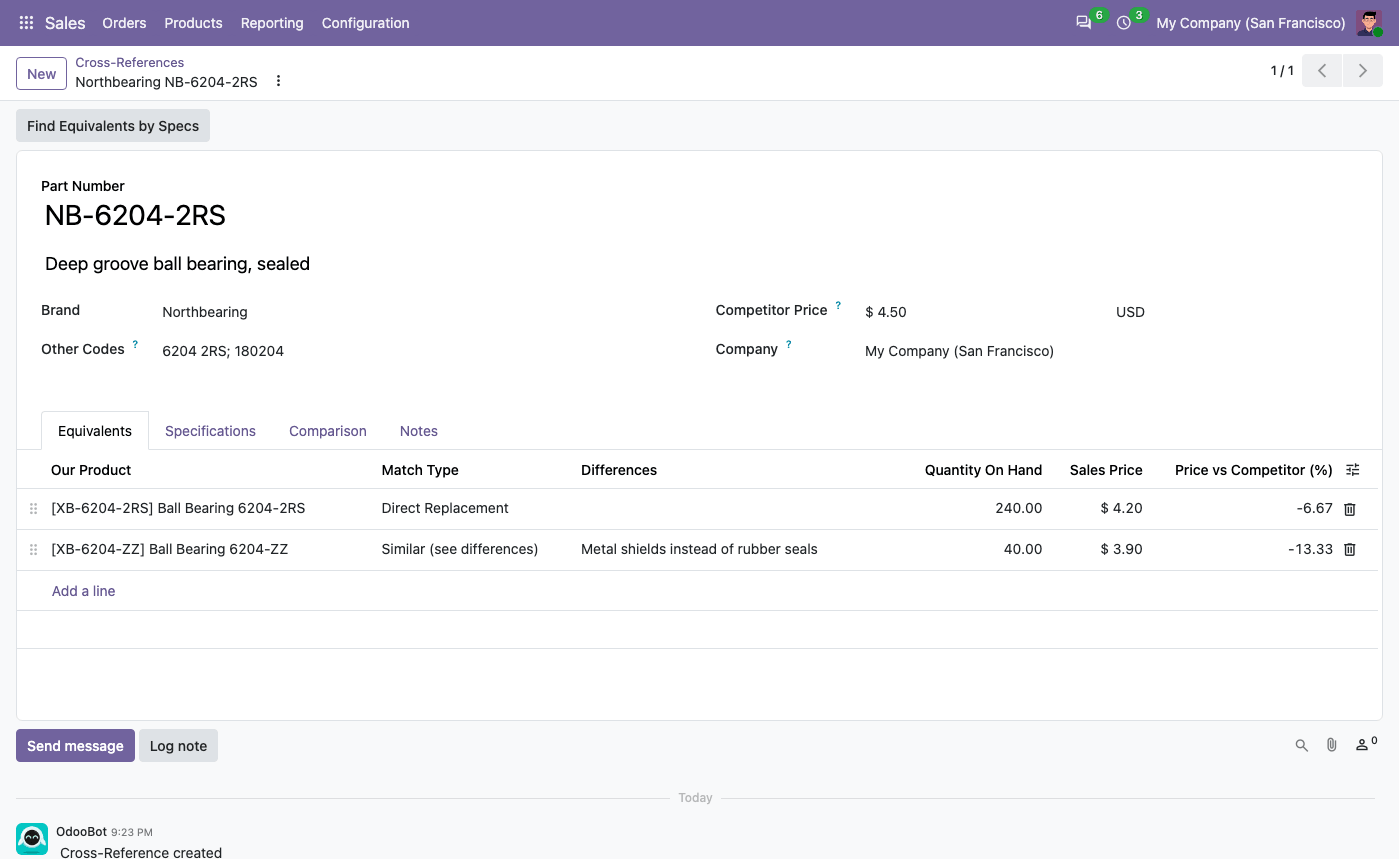
Sales → Products → Cross-References lists the part numbers of other brands with your equivalent products and the competitor price.
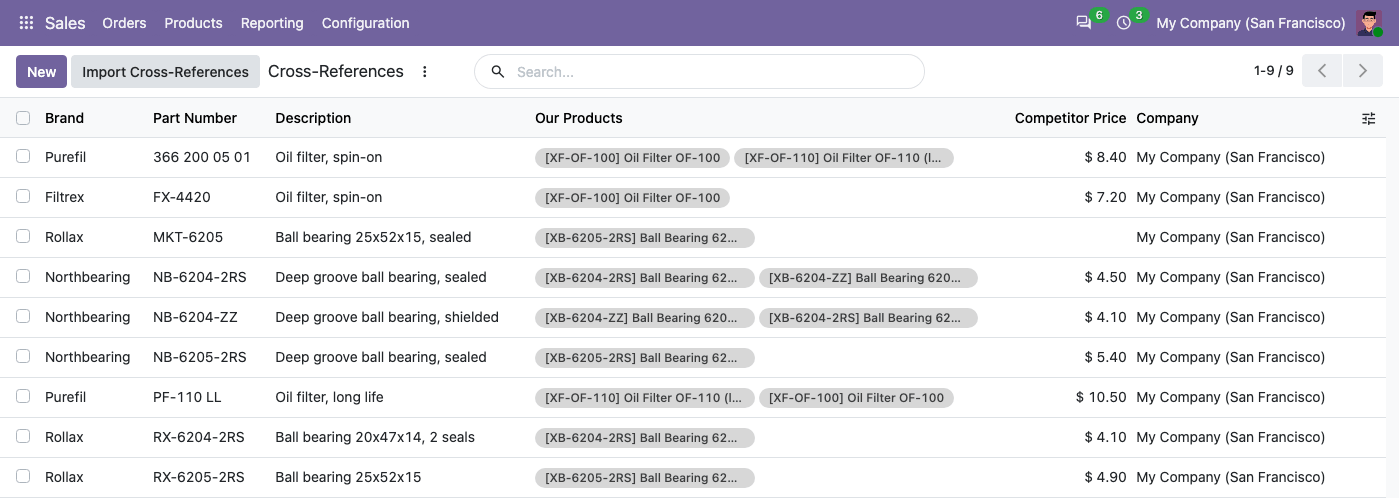
A cross-reference keeps the part number, its other codes (old numbers, other spellings), a description, the competitor price and your equivalents. Each equivalent has a priority, a match type and the differences, and shows the stock and how your price compares with the competitor's.
Compare Specifications and Prices
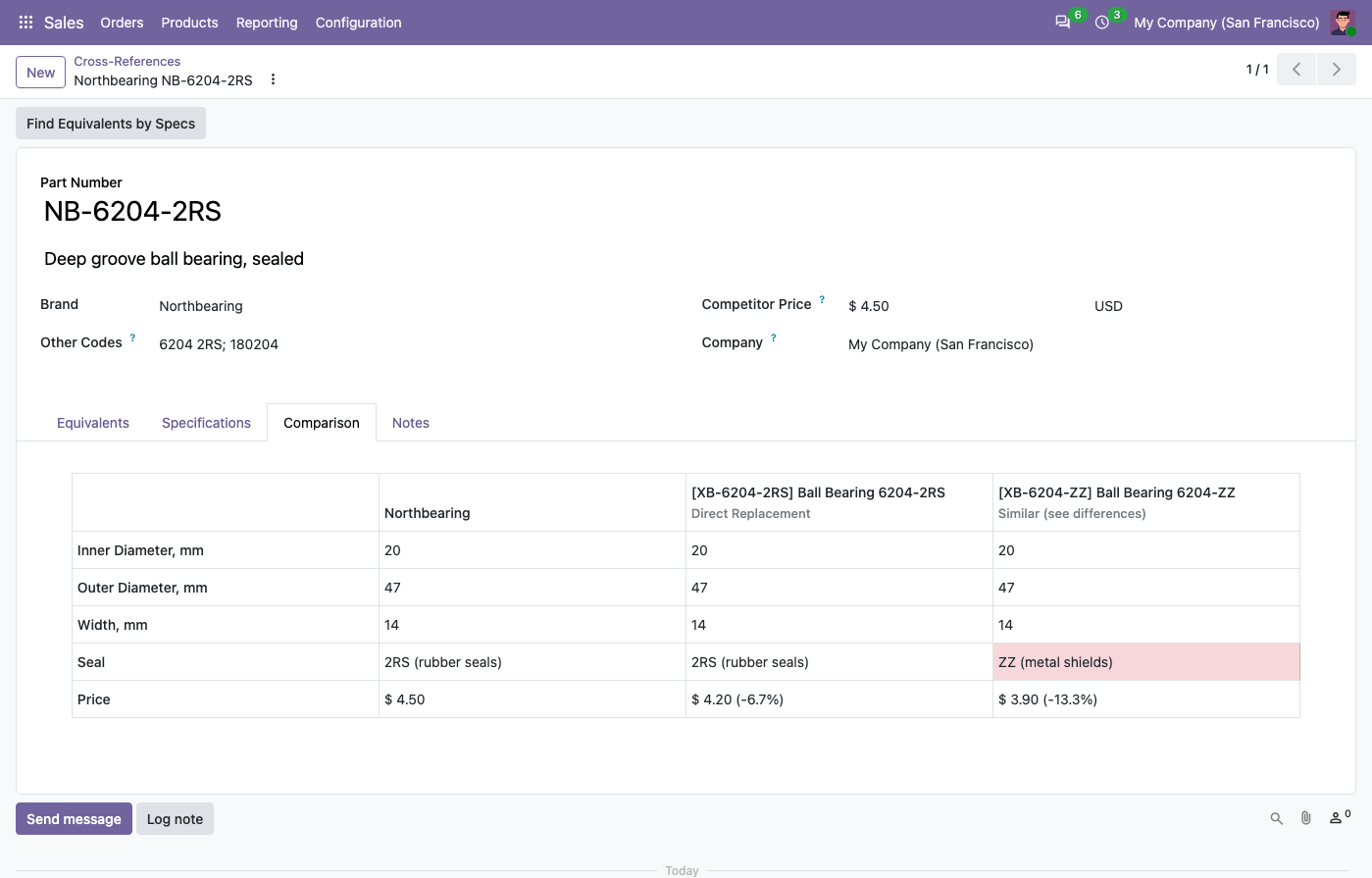
Give the cross-reference the specifications of the part, from the same attributes as your products. The Comparison tab puts them next to the values of each equivalent and highlights what differs, with the price difference in percent.
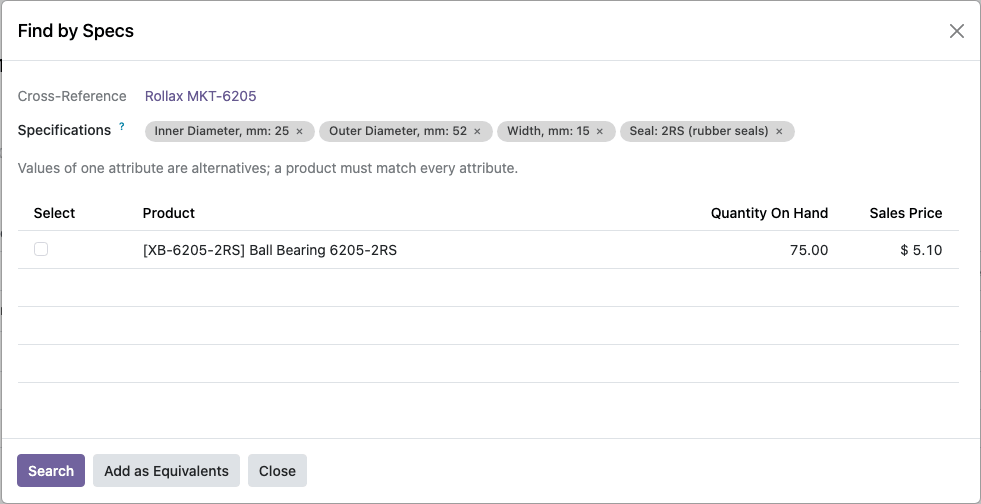
Find Equivalents by Specs lists your products with the same specifications. Values of one attribute are alternatives, and every attribute must match. Editors add the selected products as equivalents in one click. The same search is available for everybody in Sales → Products → Find by Specs.
Import from Excel or CSV
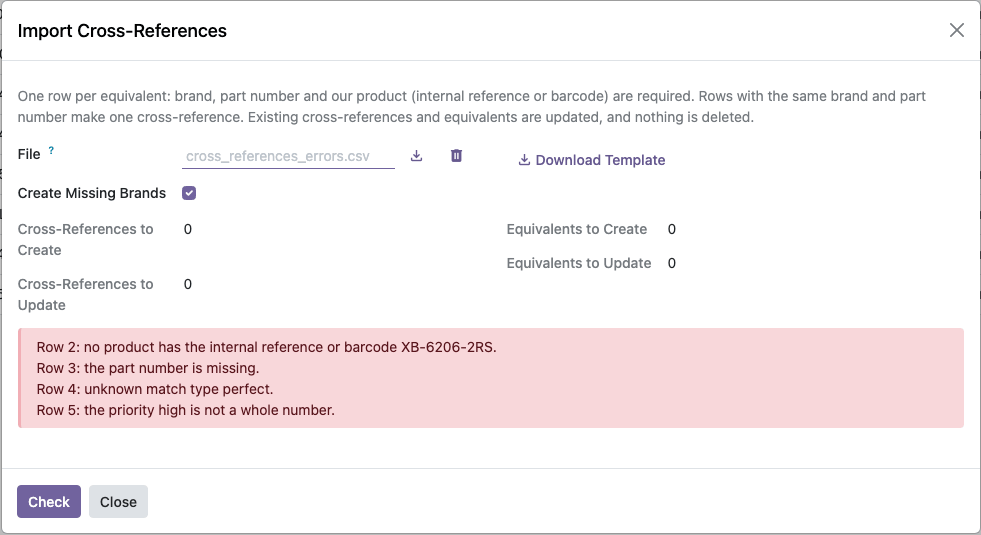
Click Import Cross-References on the list and download the template. Fill one row per equivalent; rows with the same brand and part number make one cross-reference. Check shows what will be created and updated before anything is written. Existing records are updated, blank cells keep the current values, and nothing is deleted.
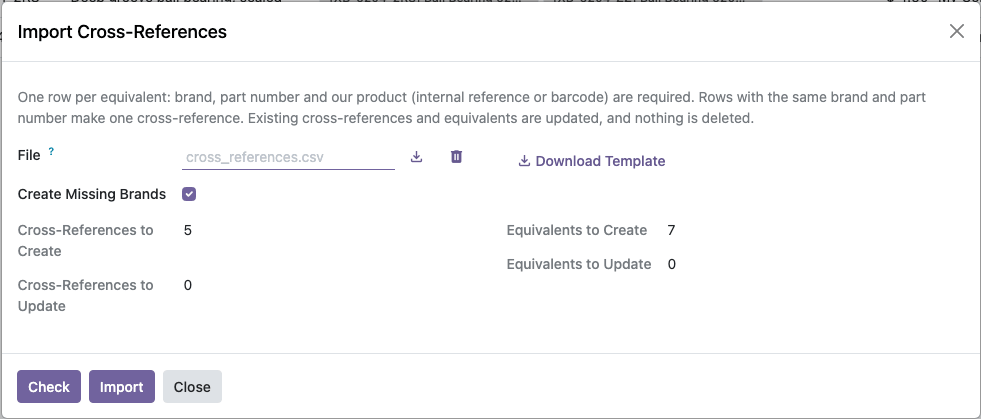
Every problem in the file is reported with its row number, and the import waits until the file is correct:
Unmatched Codes
Codes that the lookup could not find are collected in Sales → Products → Unmatched Codes, with how often they were requested, by which customer and when. Create the missing cross-reference with one click: the code is filled in, and the entry closes itself once the cross-reference is saved. Codes you do not plan to offer can be ignored.

On the Product
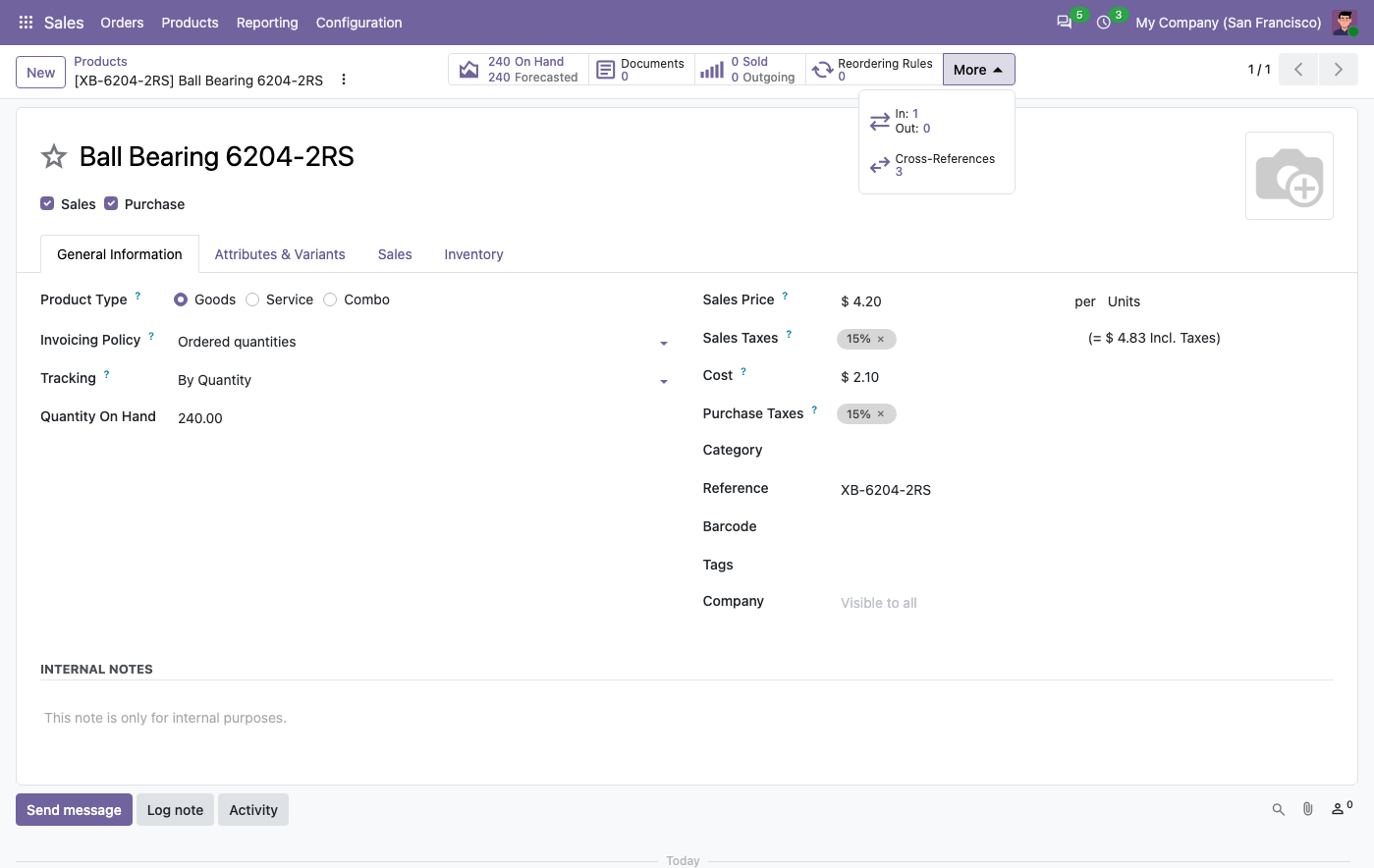
The Cross-References button on the product form shows which part numbers the product replaces.
How to Use the Module:
- Give the Cross-Reference Editor right to the salespeople who maintain the catalogue (Settings → Users → Sales → Cross-References). Sales managers have it already
- Open Sales → Products → Cross-References, click Import Cross-References, download the template, fill one row per equivalent and import it, or create the cross-references by hand
- In a quotation, type the customer's code in the product field of a line, or click Cross-Reference Lookup, paste the codes from the request, click Find, then Add to Quotation
- Review Sales → Products → Unmatched Codes from time to time and add the missing cross-references
Email: sales@xfanis.dev
Telegram: https://t.me/xfanis
Want to know when this module gets a new version or fixes? Subscribe to updates (one email to sales@xfanis.dev, no spam).