Project Access Rights by Team for Odoo
Team based access rights for projects and tasks. In standard Odoo every project user can edit and
delete any task they can see. This module lets a team leader decide, member by member, who may
edit, delete and be assigned to the tasks of a project, and lets assignees lock a task against
changes.
Project Teams
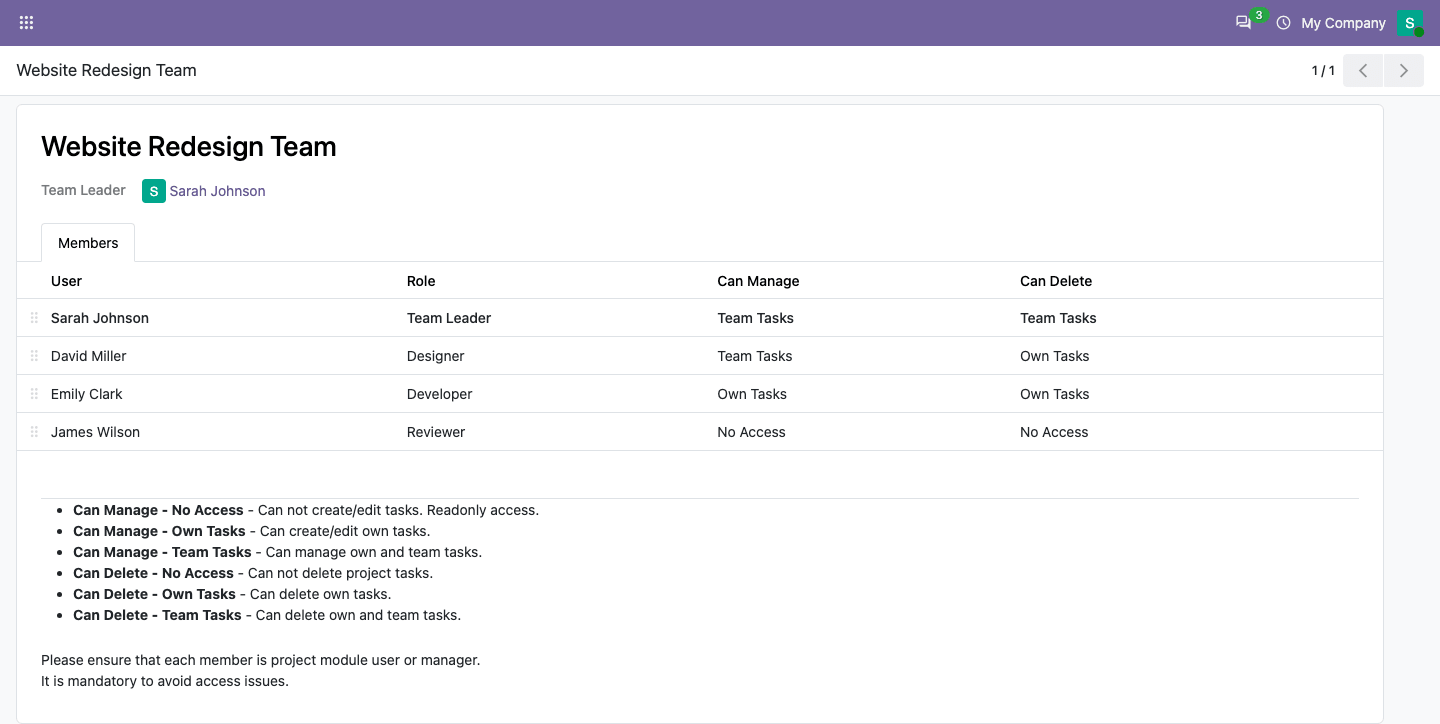
- A project team has a team leader and team members, each member with a role
- One team can be used in several projects
- The team leader can edit the project and its tasks without the project administrator group
- Team leader and members see the projects they work in
Task Permissions per Member
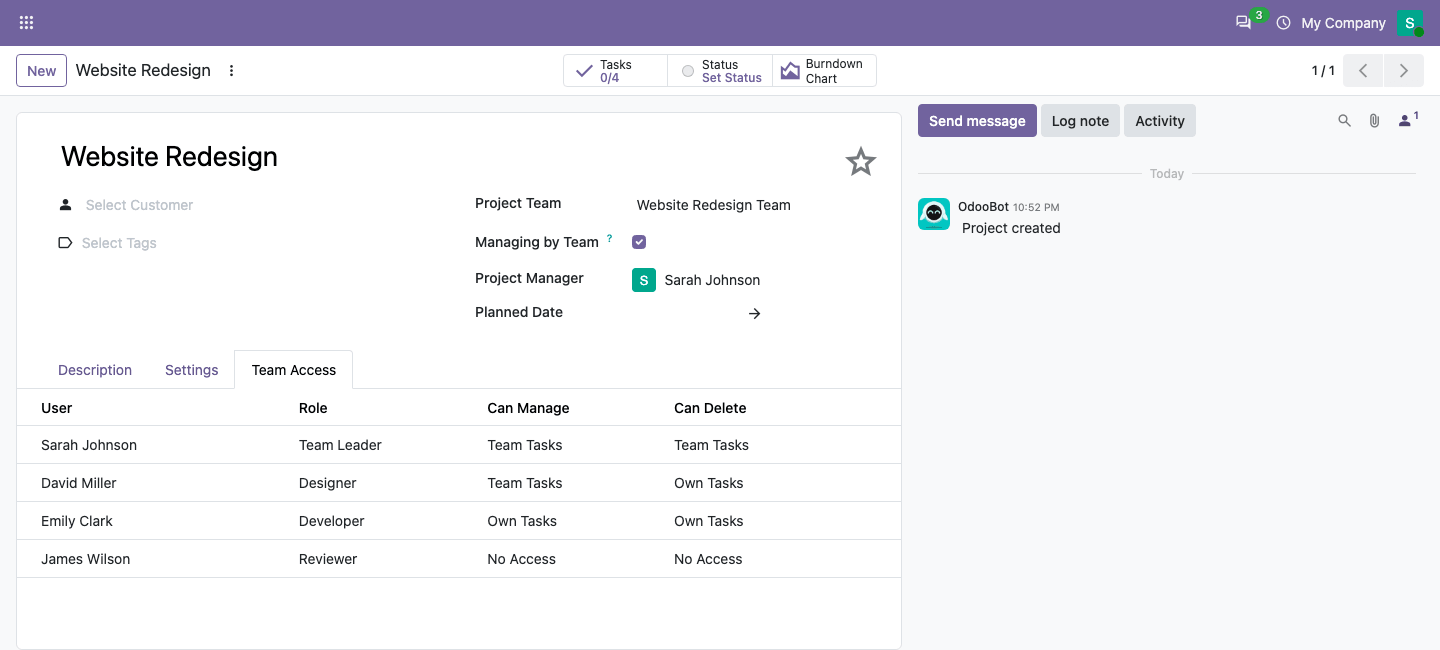
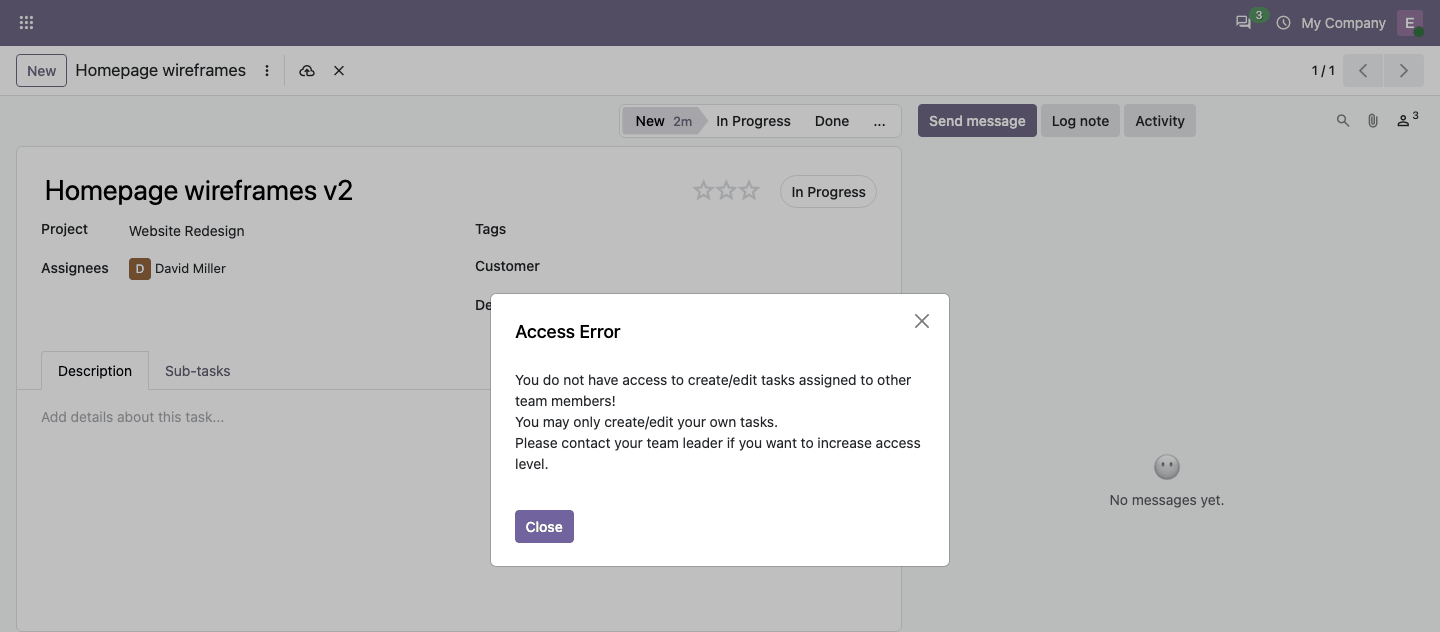
- Can Manage (create and edit tasks): no access, own tasks or team tasks
- Can Delete tasks: no access, own tasks or team tasks
- A member without enough access gets a clear message naming what is missing
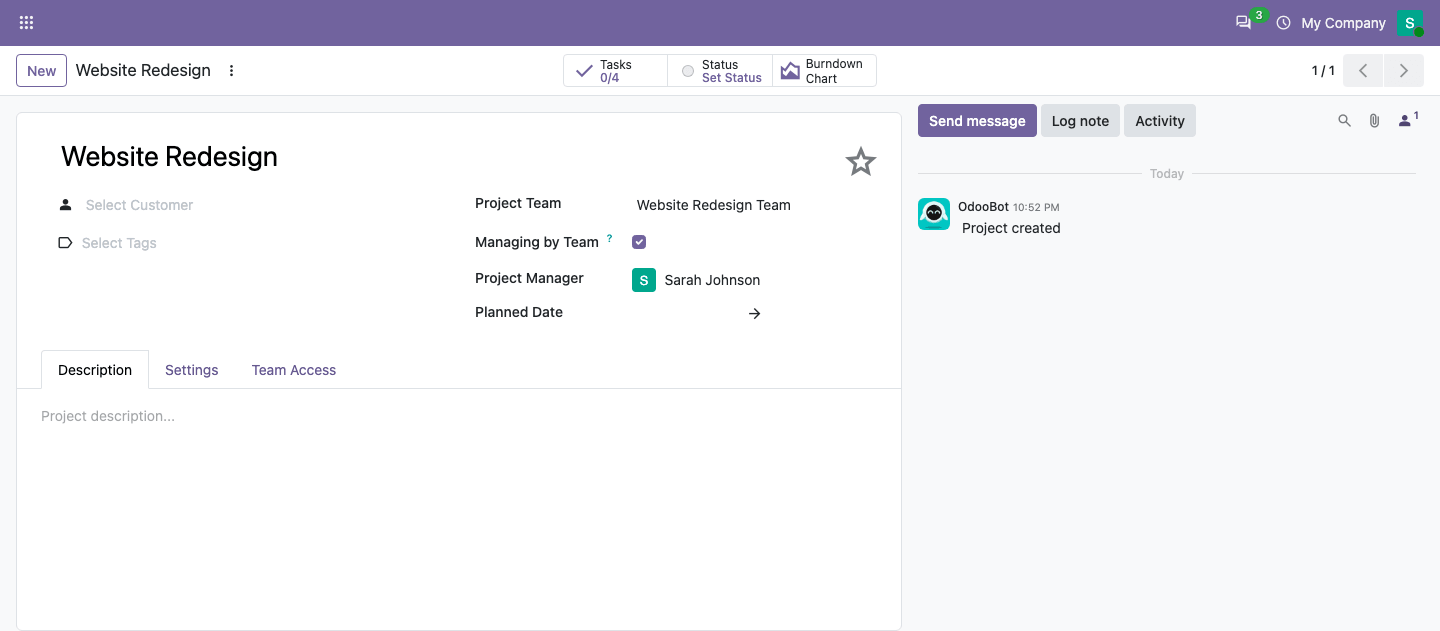
Managing by Team
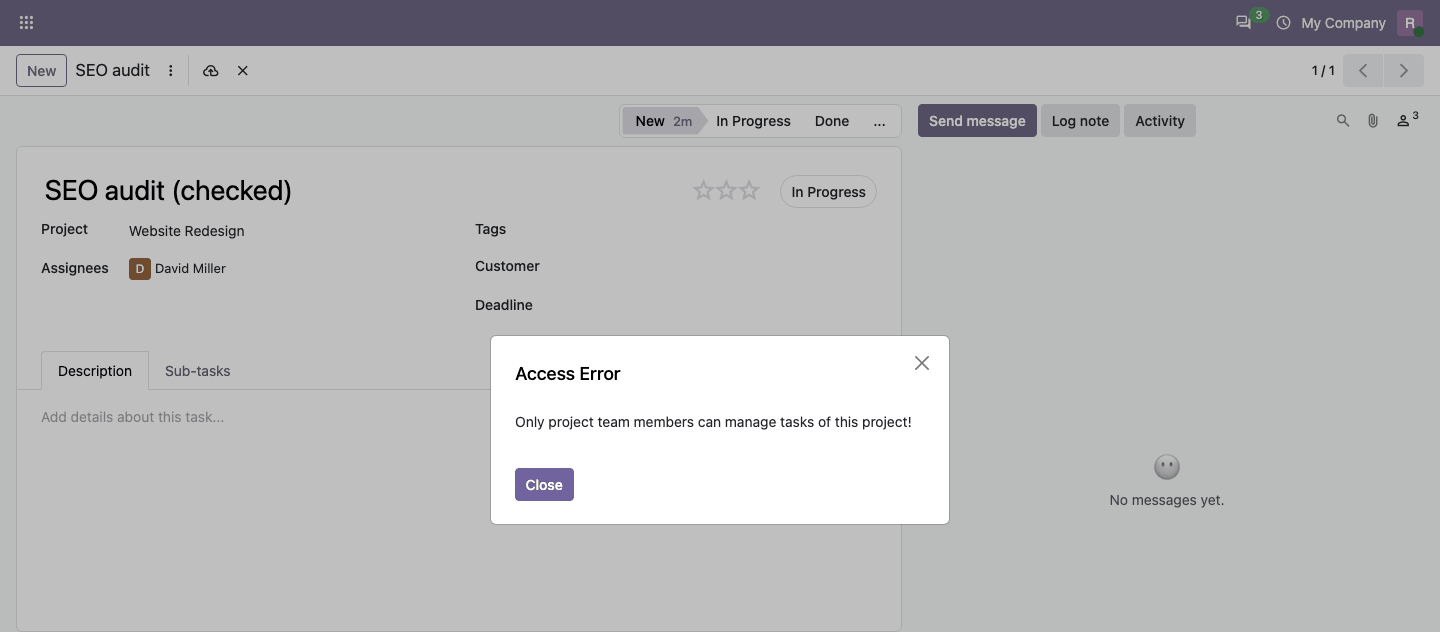
- Only team members can create and edit the tasks of the project; other users have read-only access
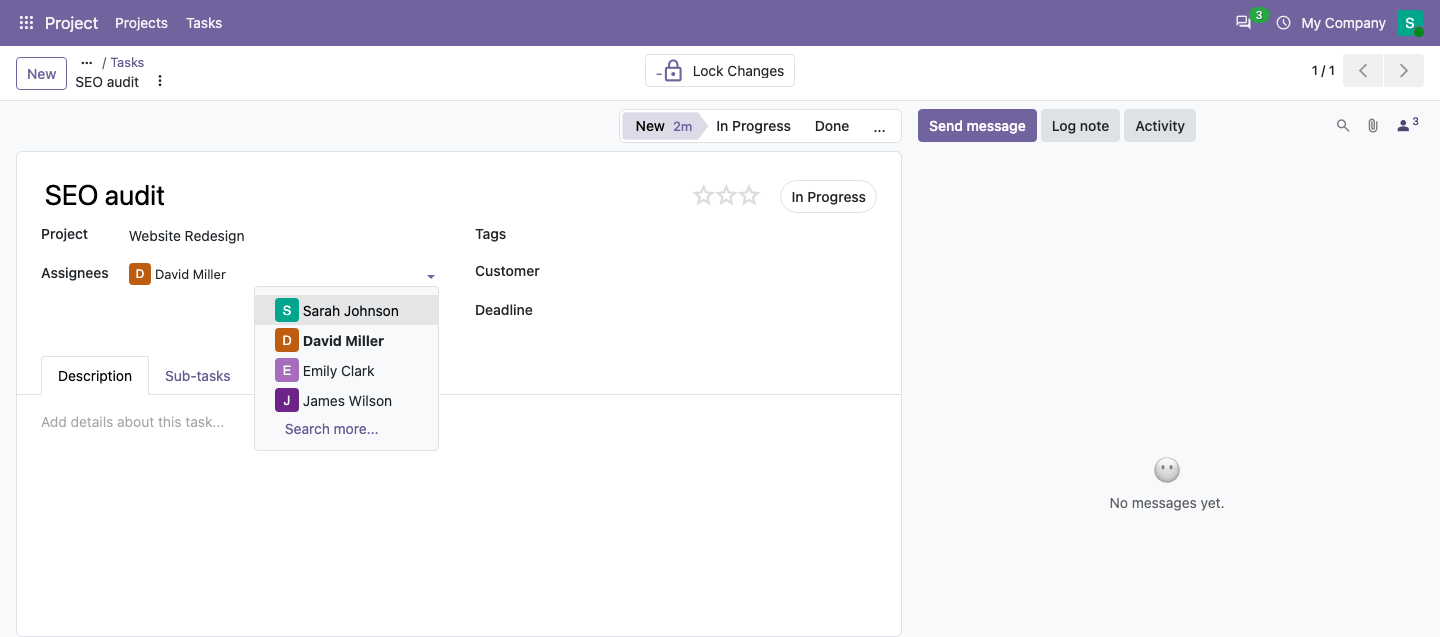
- Only team members can be assigned to the tasks of the project
Task Lock
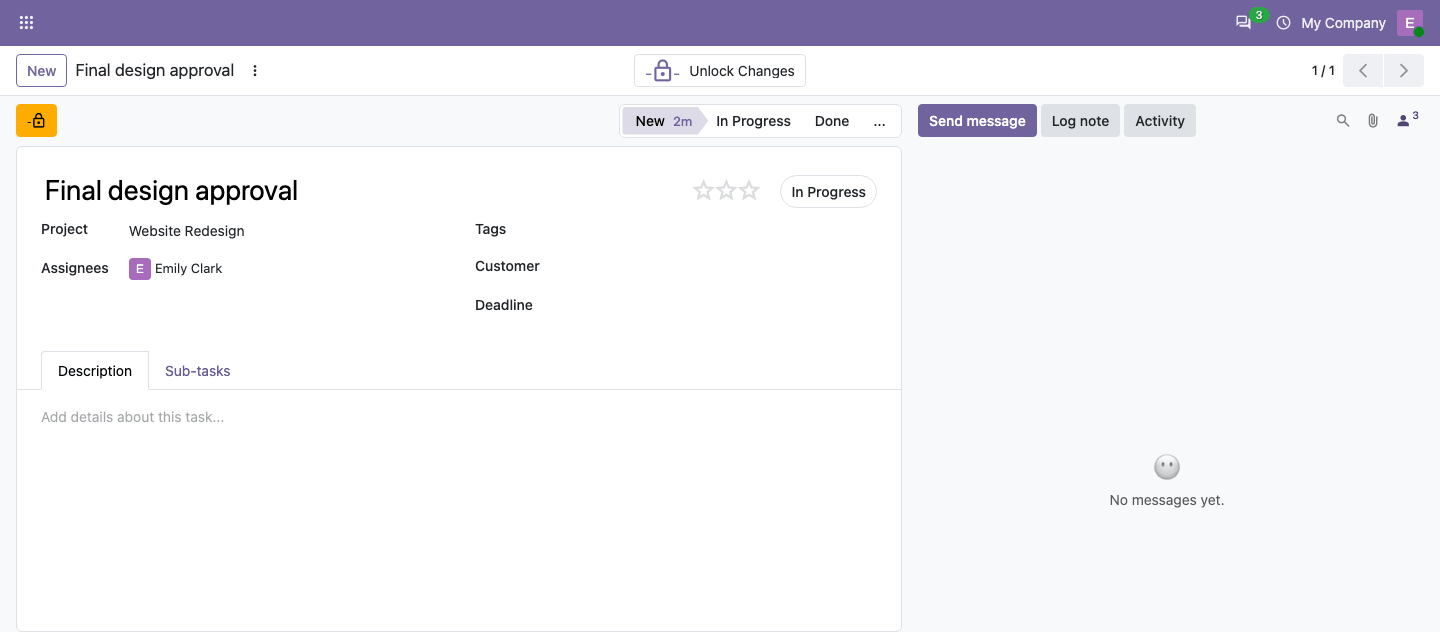
- The assignees and the project manager can lock a task
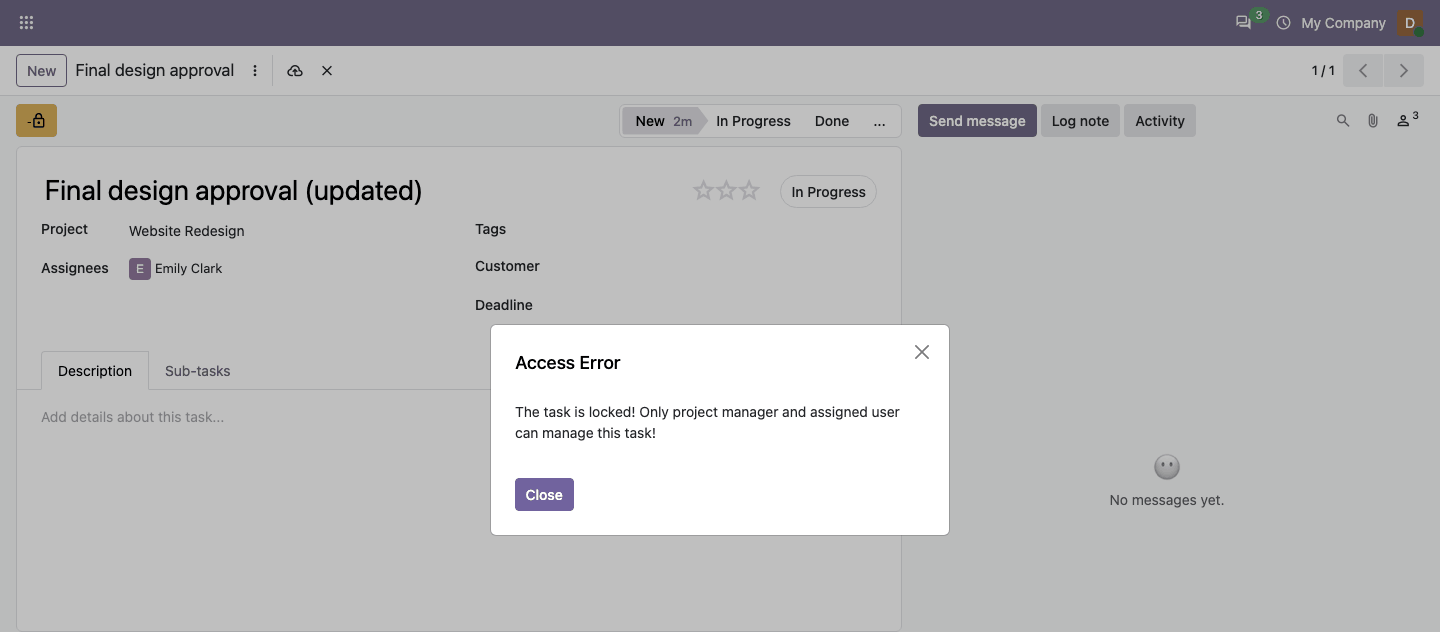
- A locked task cannot be edited or deleted by other users
Screenshots
How to Use
- Go to Project > Configuration > Project Teams, create a team, choose the team leader, add members and set their access levels.
- Open a project and select the team. Enable "Managing by Team" if only team members should edit its tasks.
- Check the "Team Access" tab of the project: it lists the members and their access levels. The members also join the core "Team Members" of a private project, which lets them see it.
- To protect a finished task, open it and click "Lock Changes".
Contact me for Support, Customization, Implementation:
Email: sales@xfanis.dev
Telegram: https://t.me/xfanis
Email: sales@xfanis.dev
Telegram: https://t.me/xfanis
Want to know when this module gets a new version or fixes? Subscribe to updates (one email to sales@xfanis.dev, no spam).